
Edgium / DNS panel guide
Edgium panel DNS manager: review, undo and history
On the DNS Zone tab you manage the records of your domain when Edgium DNS is on. The screen brings safety to something so sensitive: review before saving, an Undo button, a change history and error messages that say what to fix.
All images were taken in a demo environment with fictitious data: example domains, documentation addresses and simulated traffic. The numbers illustrate how to read each screen and do not represent any customer. The panel is shown in its Portuguese interface; it is also available in English.
In this guide
Other panel guides:
- Panel guide: sign in, navigation and new subdomain
- Analytics and WAF logs: how to read them and what to do
- DNS: review, undo and history (this page)
Review before saving
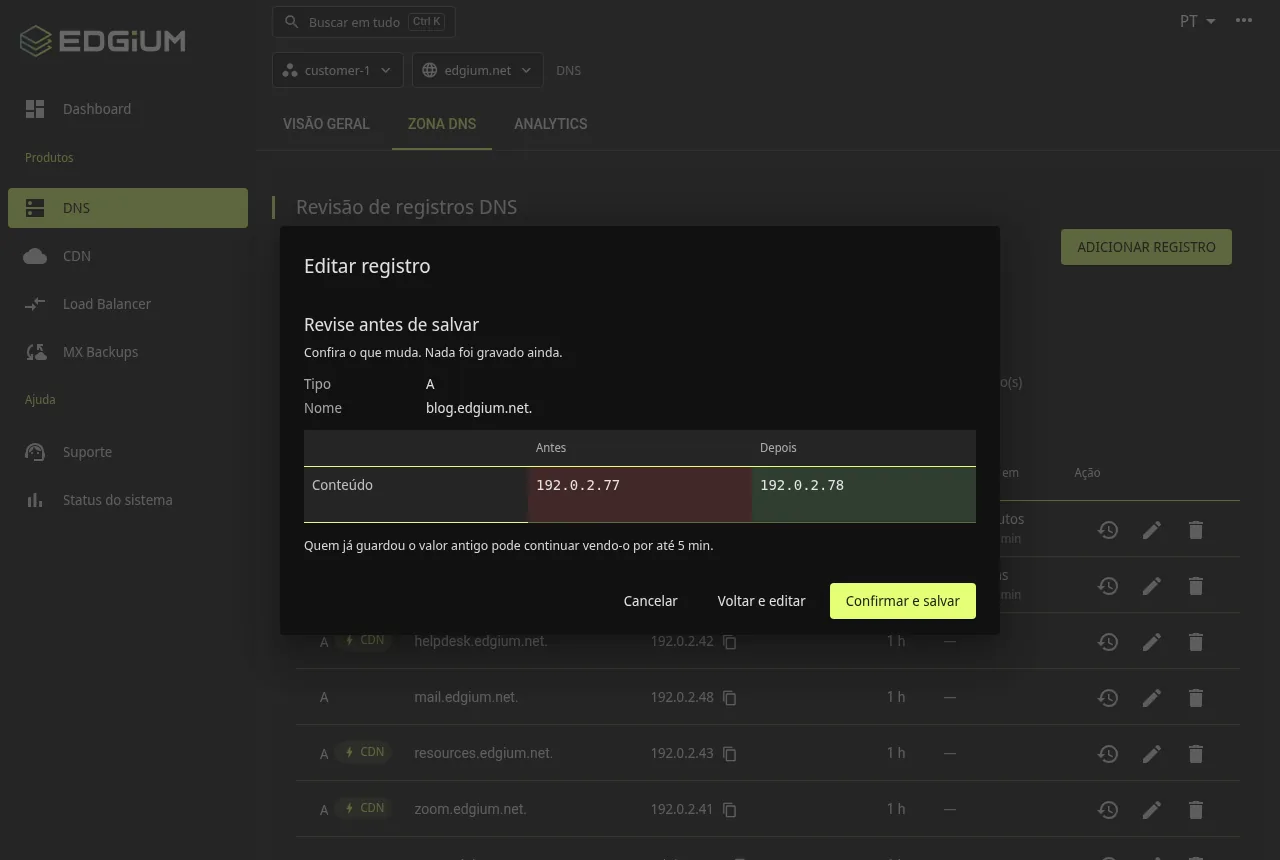
When you edit a record, the panel shows a review screen with the before and after values side by side, and tells you how long those who already cached the old value may keep seeing it. That depends on the record TTL. Nothing is written until you click Confirm and save; Back and edit returns to the form.
Changes that may affect email, such as MX records, get highlighted and extra warnings in the review.
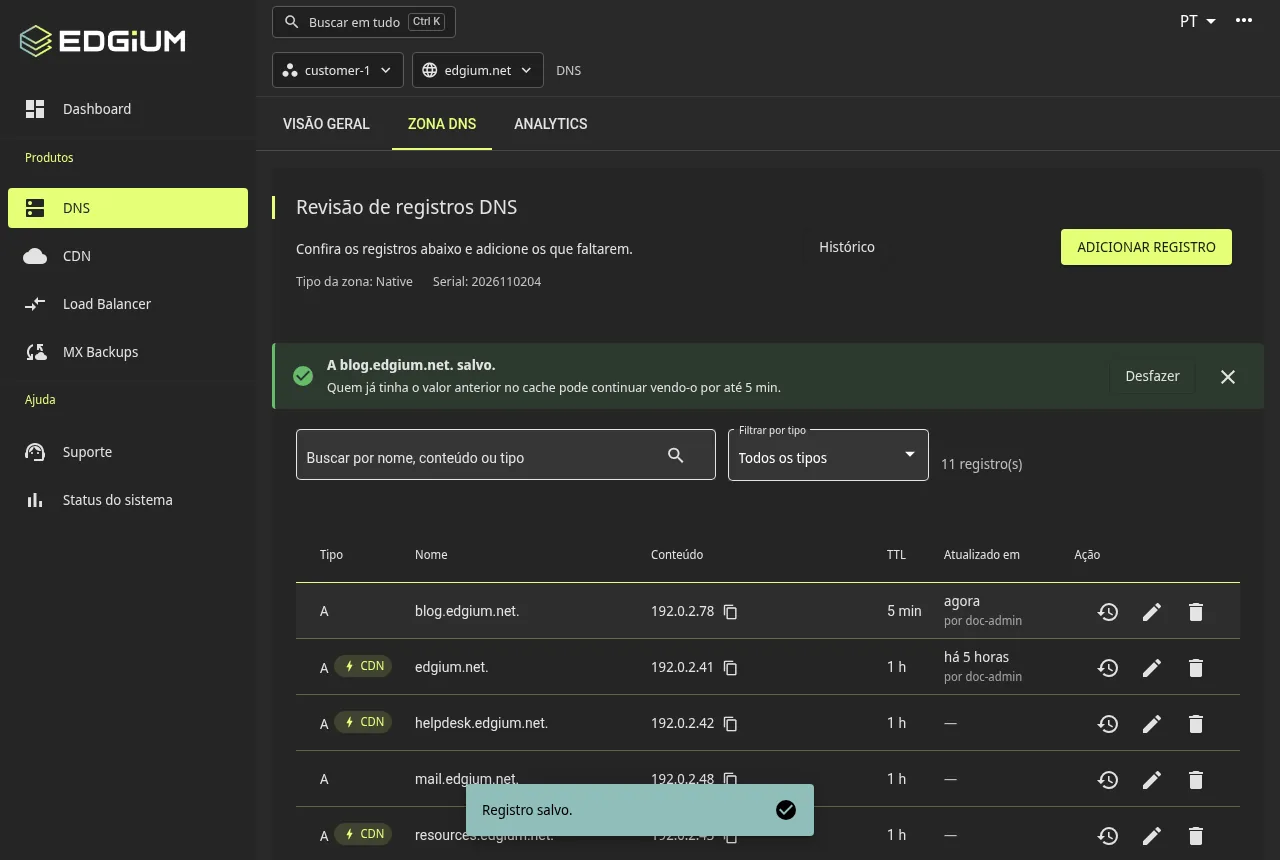
Undo
After creating, editing or deleting a record, the screen shows a notice with the Undo button. One click returns the record to its previous values.
Change history
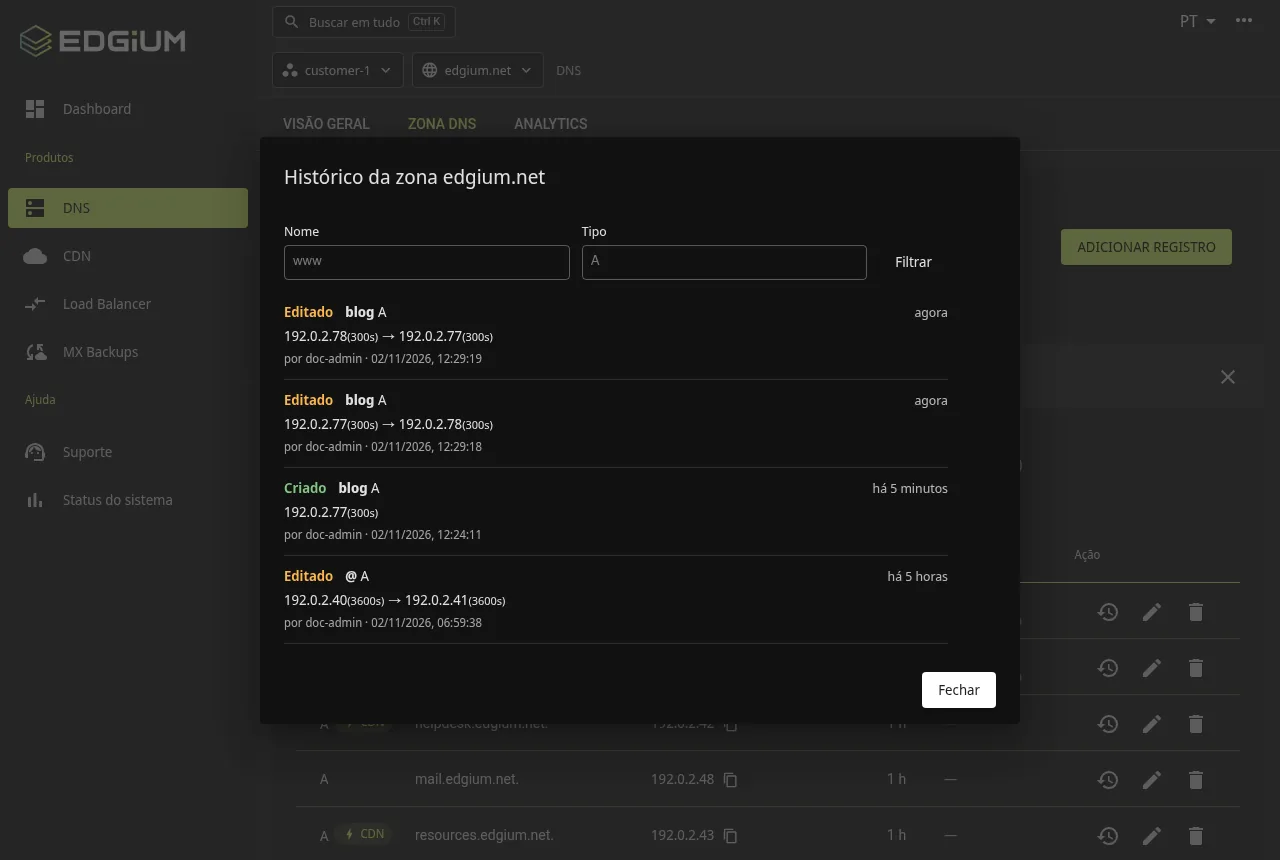
The clock icon on each row opens the history of that record. The zone History button opens the history of the whole zone, with a filter by name and by type. Each item shows whether it was created, edited or deleted, the value before and after, who did it and when. The Updated at column of the table also shows the last author.
Errors explained
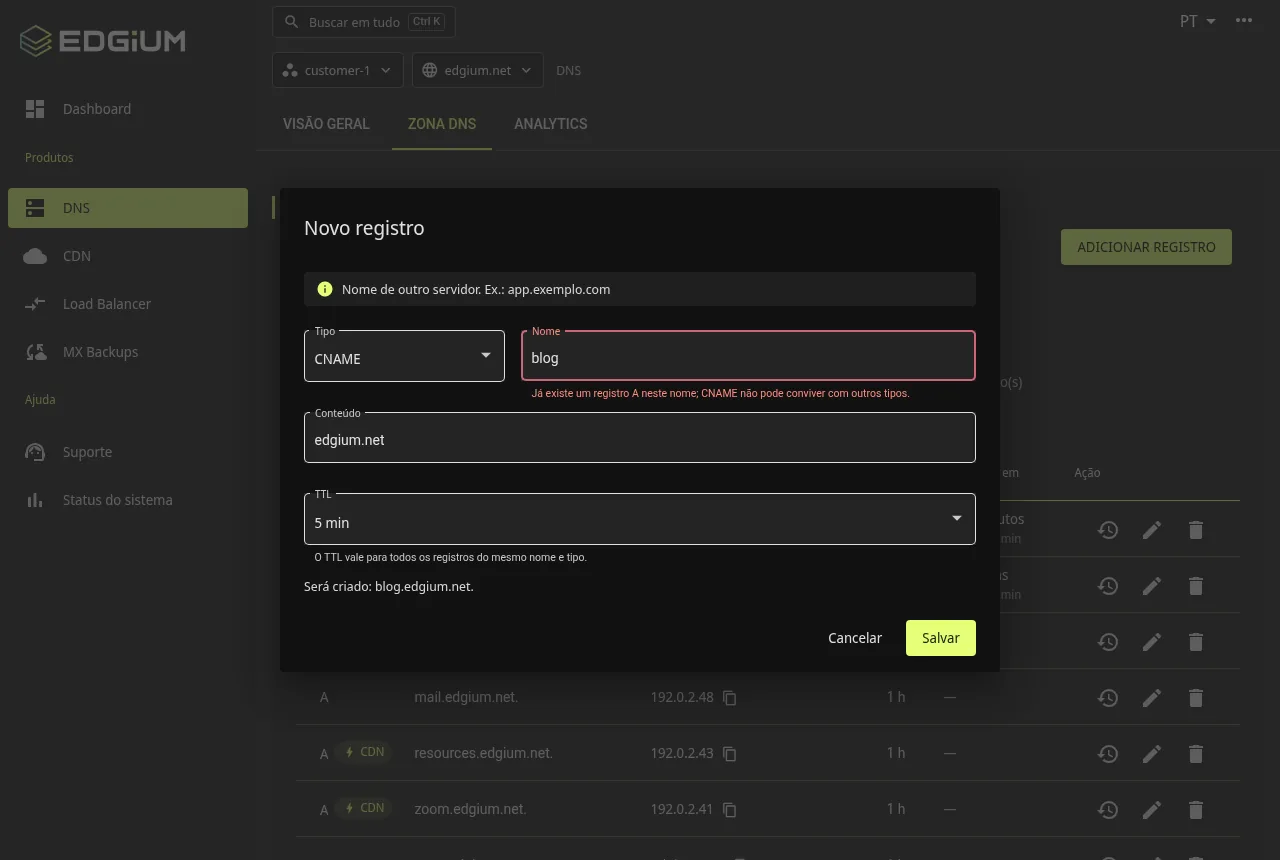
When something cannot be saved, the message appears on the field that needs fixing and says what happened, on which record and what to do. Examples: "This record already exists" or, as in the image, that an A record with that name already exists and so a CNAME cannot be created alongside it.
More safeguards on the screen
- Each save changes only the record you touched.
- The form shows the full address that will be created.
- The nameserver (NS) and SOA records of the main domain stay protected, with a discreet notice on the screen.
To put a site on the CDN after setting up the DNS, see the new subdomain wizard. To learn more about the Edgium DNS offer, see the DNS page.
Frequently asked questions
Can I undo a DNS change in the panel?
Yes. After creating, editing or deleting a record, the screen shows a notice with the Undo button, which returns the record to its previous values.
How do I see who changed a DNS record?
The clock icon on each row opens the history of that record, and the zone History button opens the whole zone, with the value before and after, who did it and when.
Does the panel confirm before writing a DNS change?
Yes. When you edit, the panel shows a review screen with the value before and after. Nothing is written until you click Confirm and save.
No panel account yet?
Accounts are created by the Edgium team. Tell us your domain and we will prepare your access and a trial with your site.