
Edgium / Activate a subdomain
How to activate a subdomain on the Edgium CDN: step by step to HTTPS
This guide takes you from creating a subdomain to HTTPS active. The panel tracks everything for you: at each moment it shows which of the 8 steps your subdomain is on, what is already done and who acts now, you or Edgium.
The images use demonstration data. The panel is shown in Portuguese in the images and in the video; the video captions are in Portuguese.
Watch the video (1 min 45 s)
In this guide
- The 8 steps
- 1. Create the subdomain
- 2. Edgium sends the configuration to the network
- 3. Point your DNS
- 4. Activate the certificate
- 5. Edgium issues the certificate
- 6. The certificate reaches the network
- 7. Activate HTTPS
- 8. Confirm it worked
- Need help?
Other panel guides:
- Panel guide: sign in, navigation and new subdomain
- Analytics and WAF logs: how to read them and what to do
- DNS: review, undo and history
- Activate a subdomain: step by step to HTTPS (this page)
The 8 steps
| Step | Who acts |
|---|---|
| 1. Site registered | You |
| 2. Sending to the network | Edgium |
| 3. Point your DNS | You |
| 4. Waiting for DNS validation | Edgium |
| 5. Activate the certificate | You |
| 6. Issuing certificate | Edgium |
| 7. Certificate on the network | Edgium |
| 8. HTTPS active | You turn it on, Edgium applies it |
You do four things: create the subdomain, create the DNS record, request the certificate and turn on HTTPS. The rest is automatic.
1. Create the subdomain (step 1: site registered)
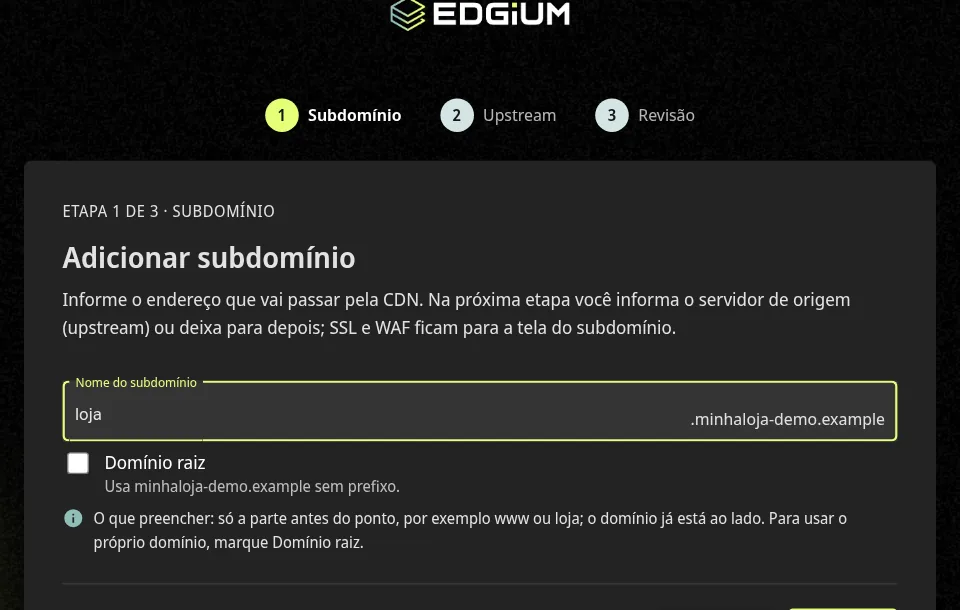
What to do. In the panel, open CDN, choose the domain and click Add subdomain. Type only the part before the dot, for example loja; the domain already appears beside it. To use the domain itself, with no prefix, check Root domain. Click Next.
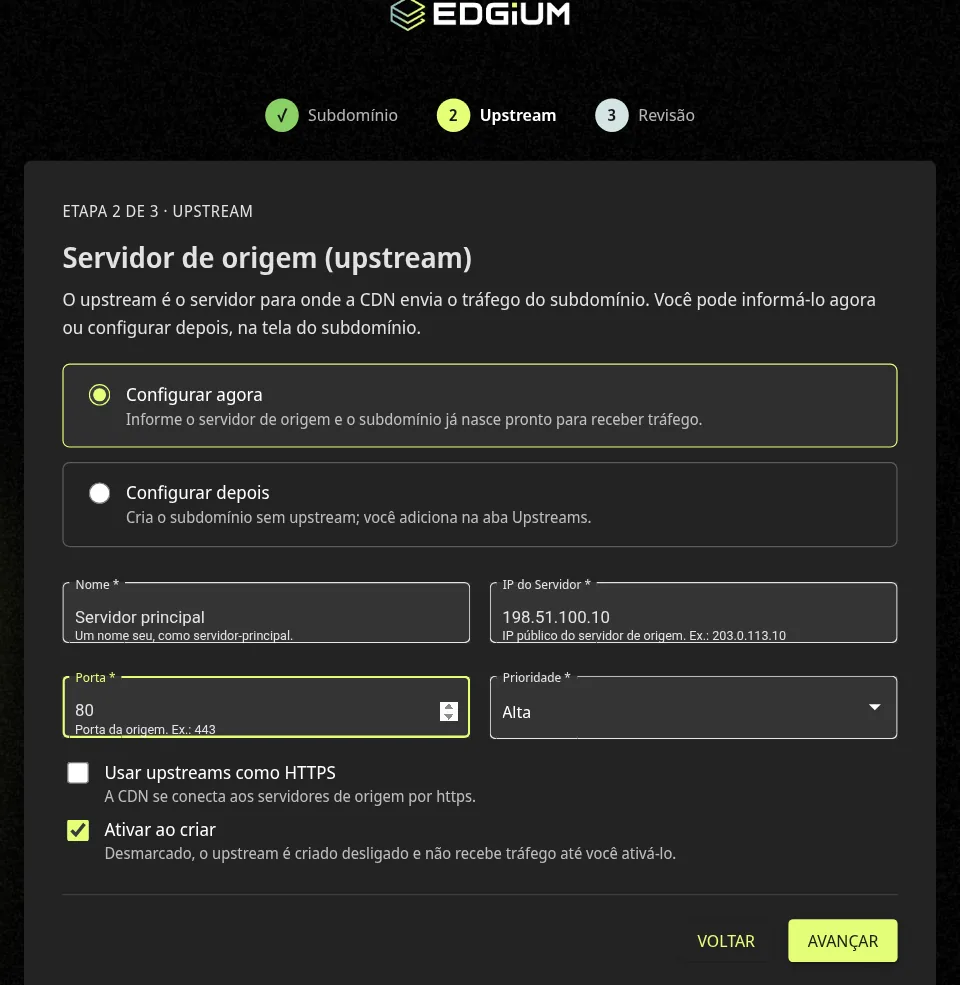
In step 2, enter the origin server (upstream): the IP address and port of the server where your site is hosted, where the CDN fetches the content from. Leave Activate on create checked and click Next.
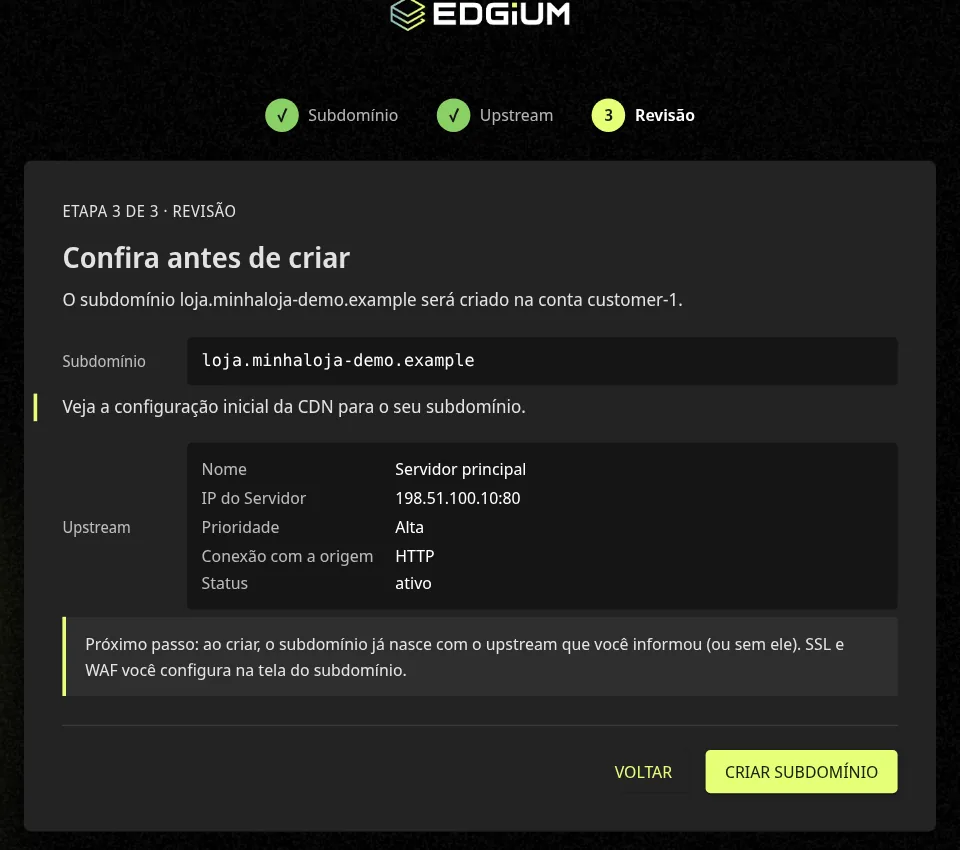
In step 3, check the summary and click Create subdomain.
What to expect. The panel opens the subdomain Overview tab with the activation panel. Step 1 already shows as completed.
2. Edgium sends the configuration to the network (step 2)
What to do. Nothing. This step belongs to Edgium.
What to expect. Step 2 shows as in progress and usually takes up to 30 minutes. You can move on to step 3 meanwhile.
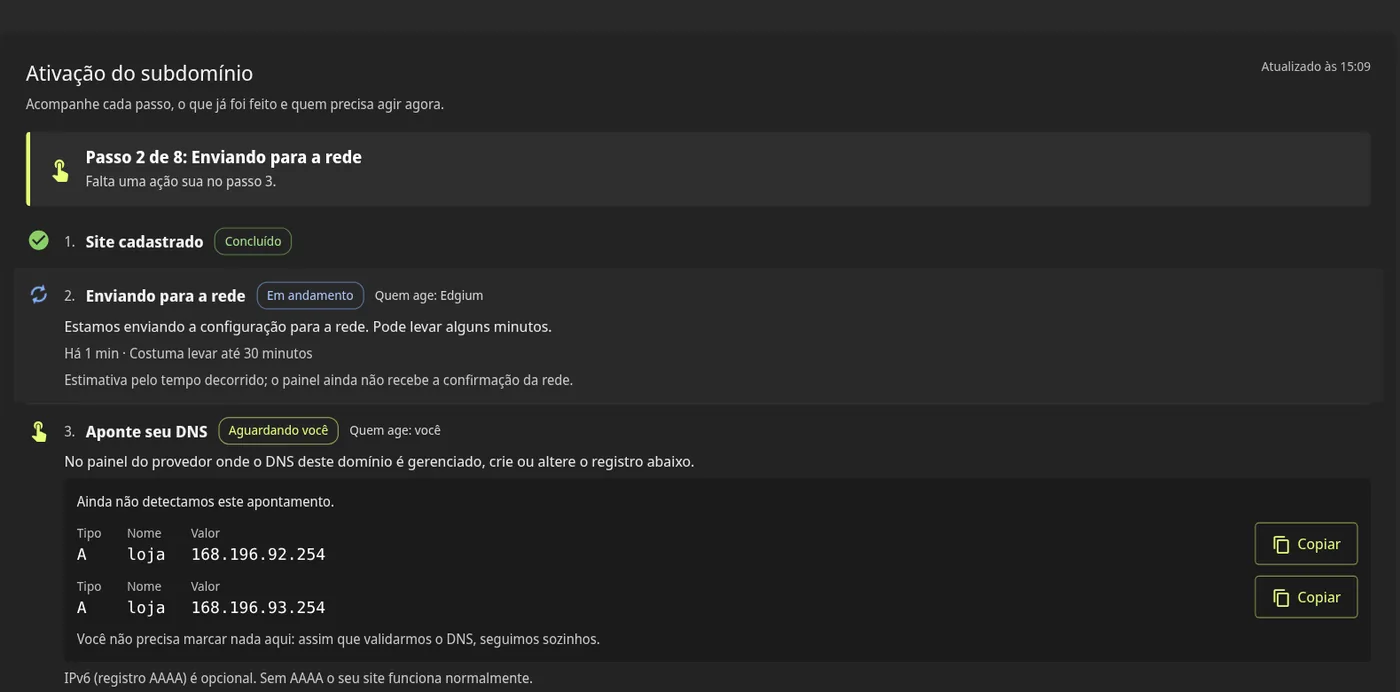
3. Point your DNS (steps 3 and 4)
What to do. At the provider that manages your domain DNS, create the record shown in step 3 of the Overview: type A, with the subdomain name (loja in the examples) and the address the panel displays. The panel shows the exact value, with a Copy button beside each address. In the examples of this guide the values are 168.196.92.254 and 168.196.93.254; create one A record for each address the panel shows. The AAAA record (IPv6) is optional: without it the site works normally.
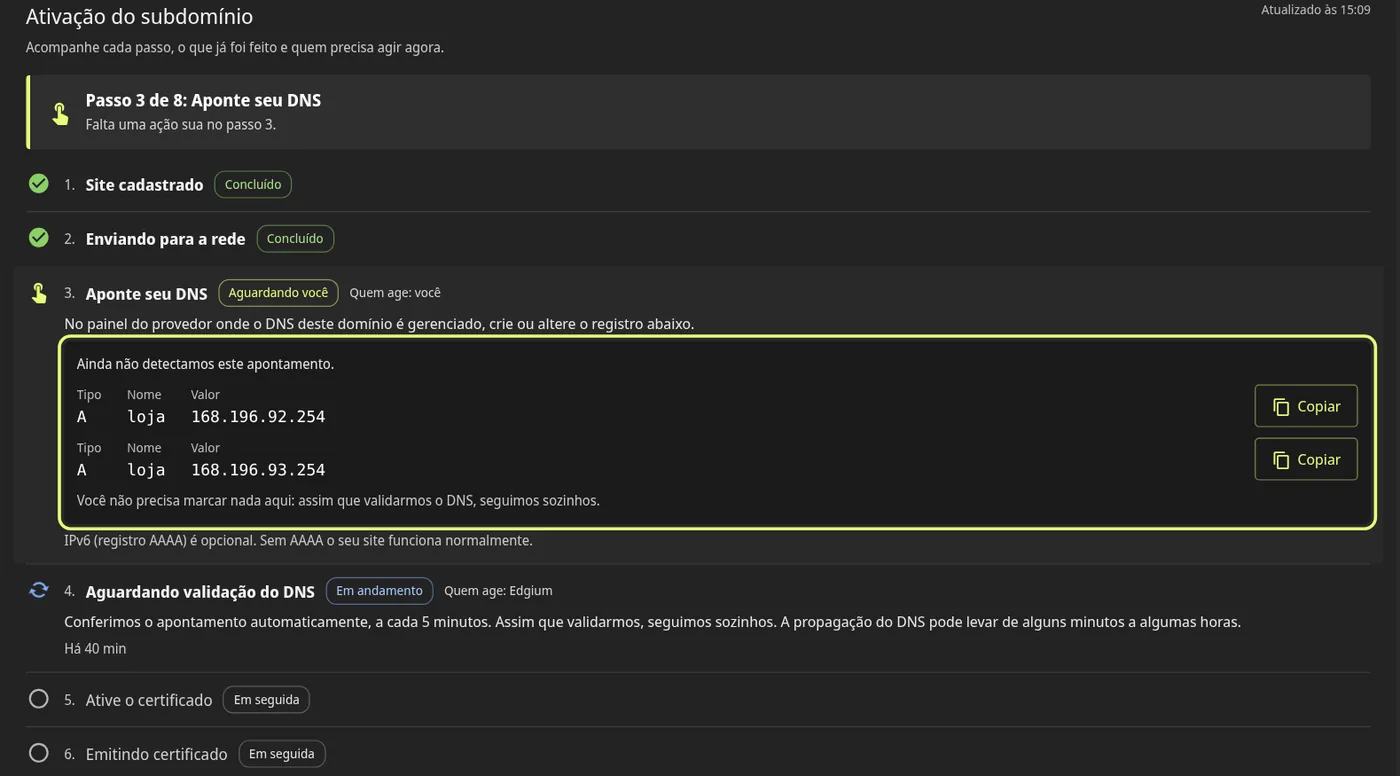
What to expect. You do not need to mark anything in the panel. Step 4, waiting for DNS validation, belongs to Edgium: it checks the record automatically, every 5 minutes. DNS propagation can take from a few minutes to a few hours, depending on your provider. When the DNS is validated, steps 3 and 4 become completed and the panel moves on to step 5.
4. Activate the certificate (step 5)
What to do. With the DNS validated, the Go to the SSL tab button becomes available in step 5. Click it.
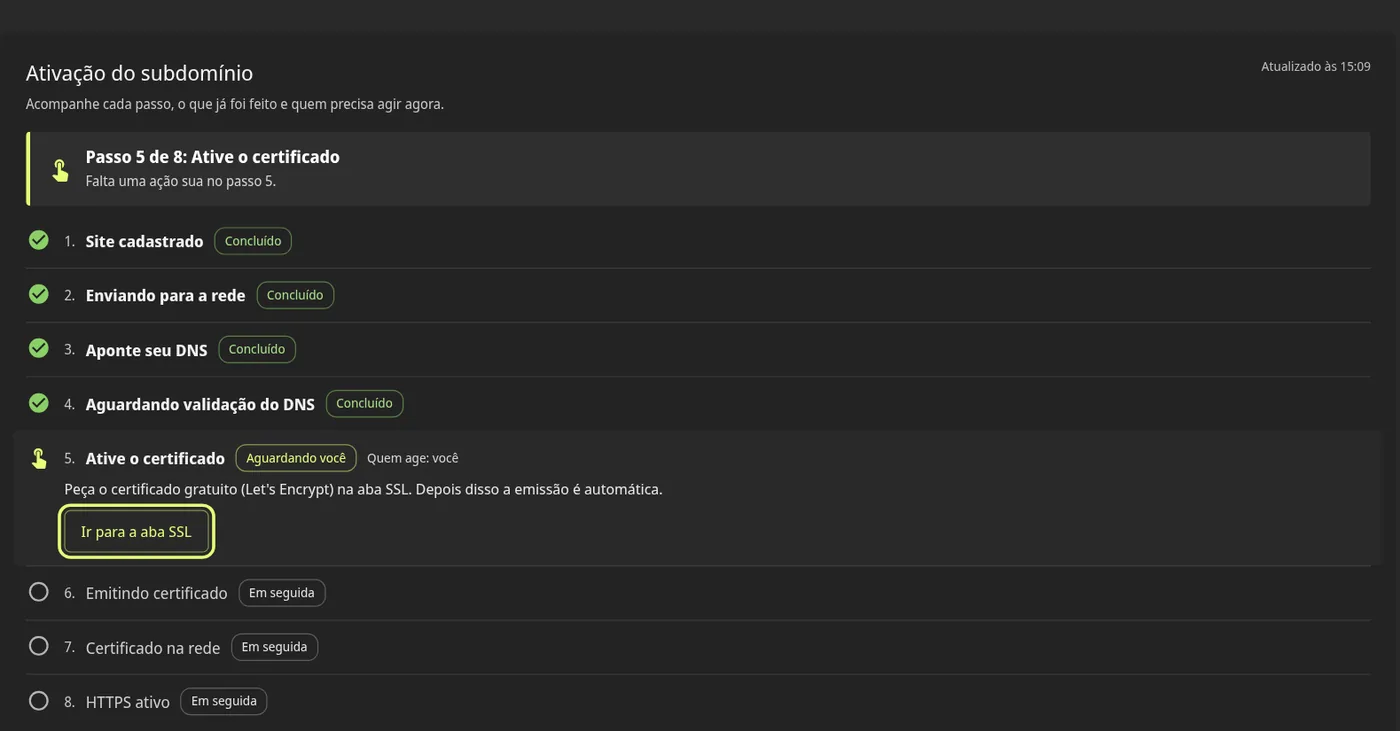
In the SSL tab, in the free certificate block, click Create.
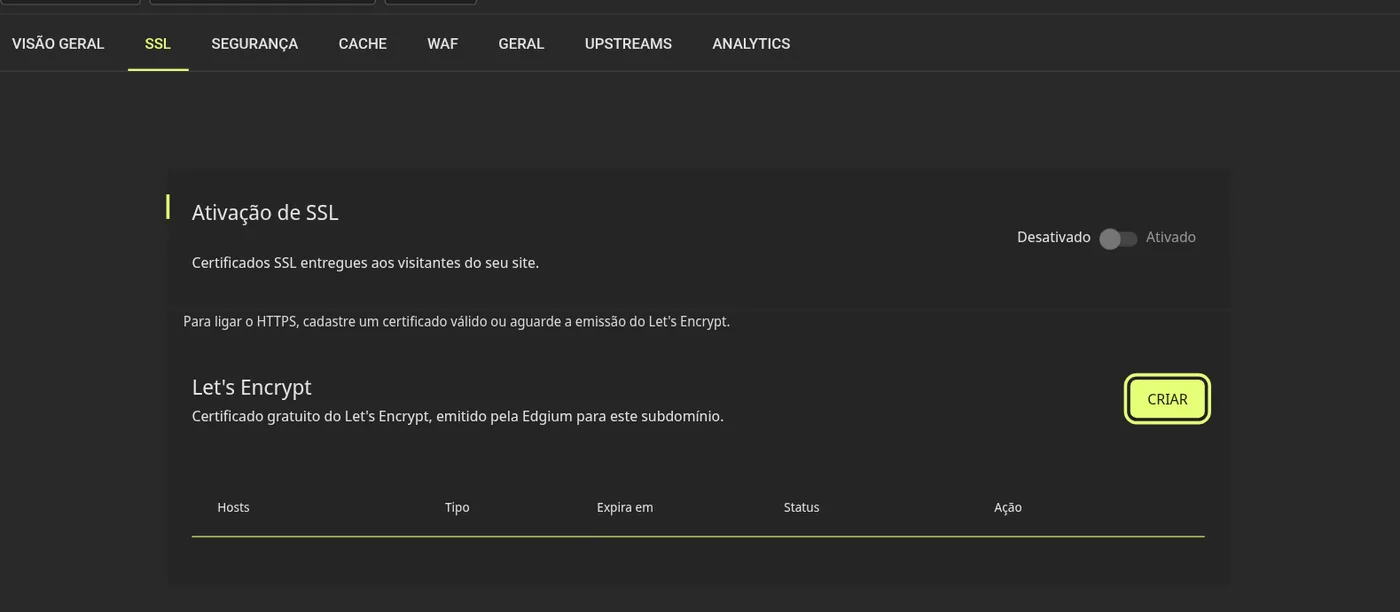
What to expect. The request appears in the SSL tab list and step 5 becomes completed. From here on, issuance is automatic.
5. Edgium issues the certificate (step 6)
What to do. Nothing.
What to expect. Step 6 is in progress and usually takes up to 15 minutes. When it ends, it becomes completed.
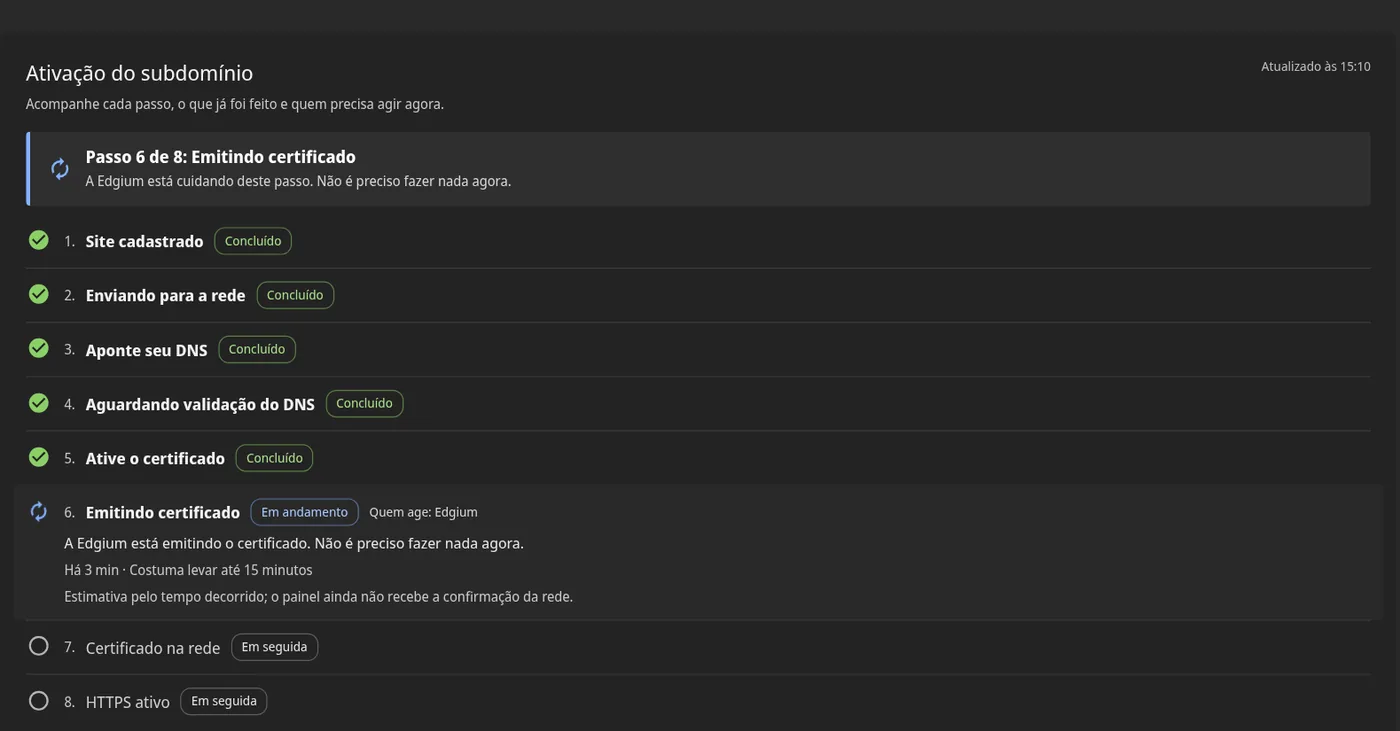
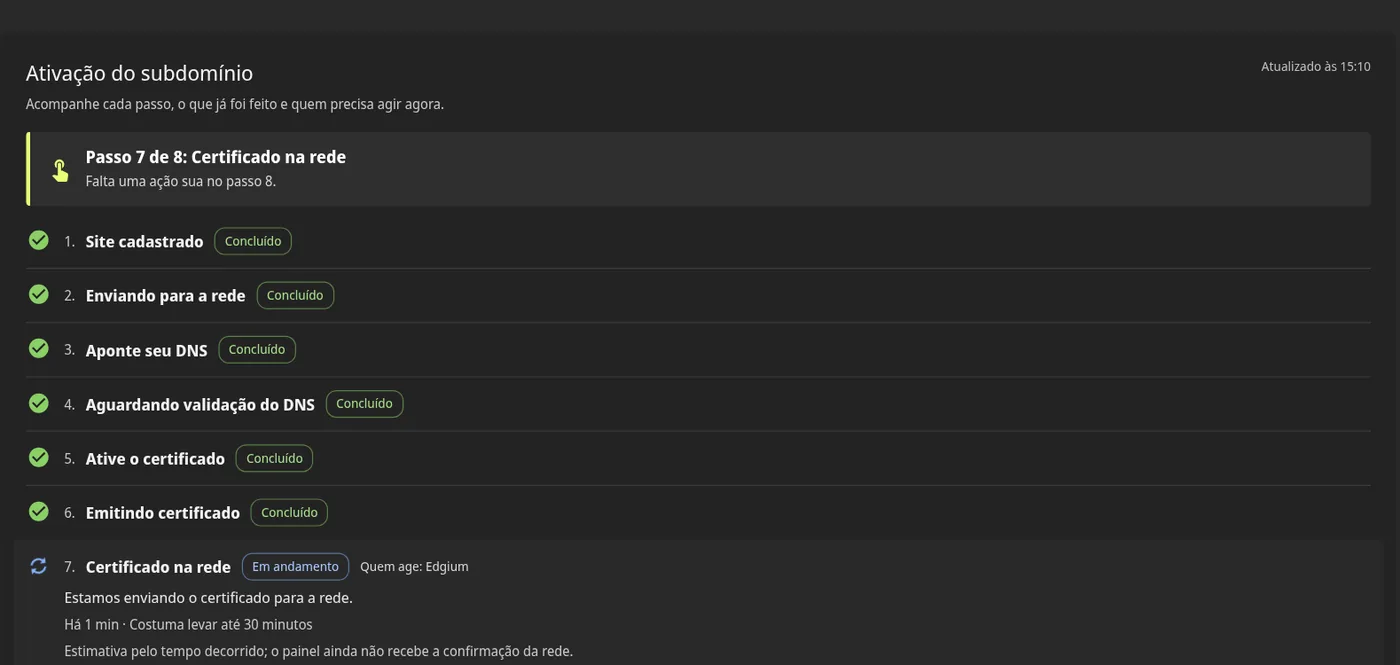
6. The certificate reaches the network (step 7)
What to do. Nothing.
What to expect. Edgium distributes the certificate across the network, which usually takes up to 30 minutes. When it ends, step 7 becomes completed and the step 8 button is released.
7. Activate HTTPS (step 8)
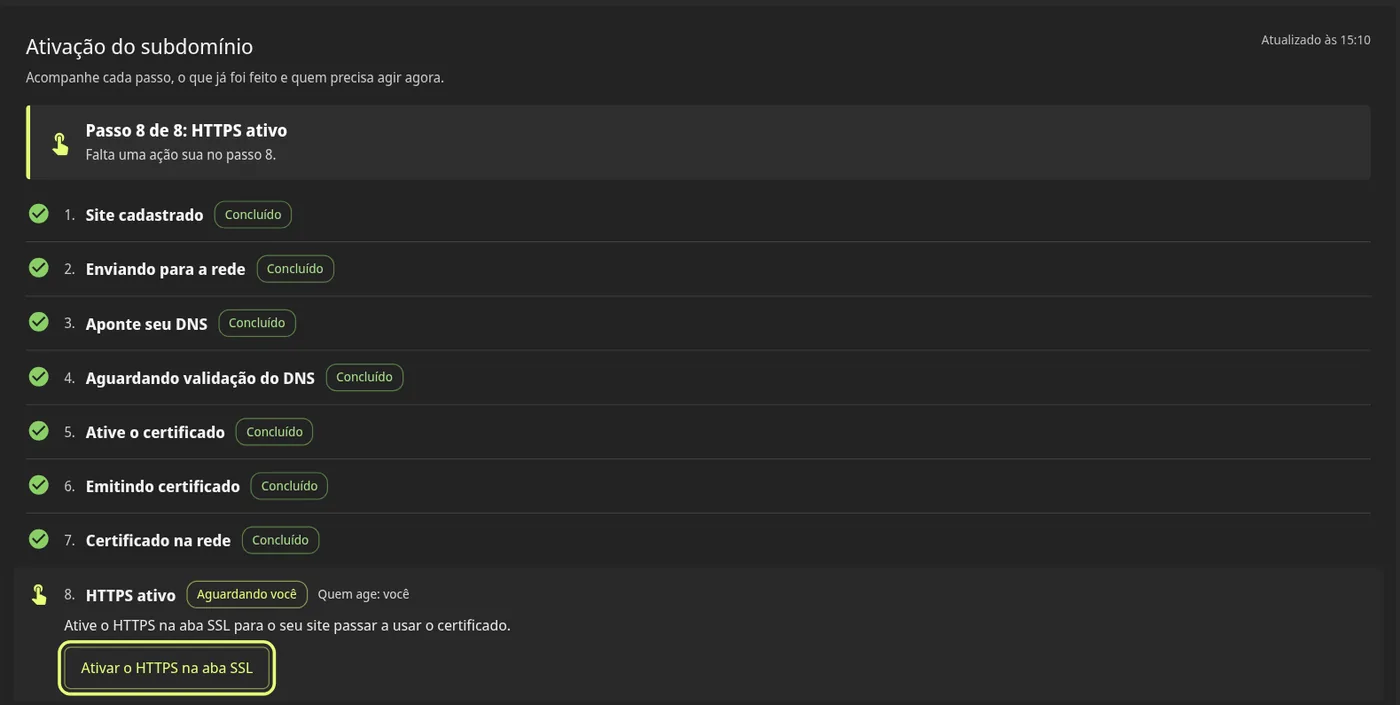
What to do. With the certificate on the network, step 8 shows the Activate HTTPS in the SSL tab button. Click it and, in the SSL tab, turn on the SSL activation switch (from off to on).
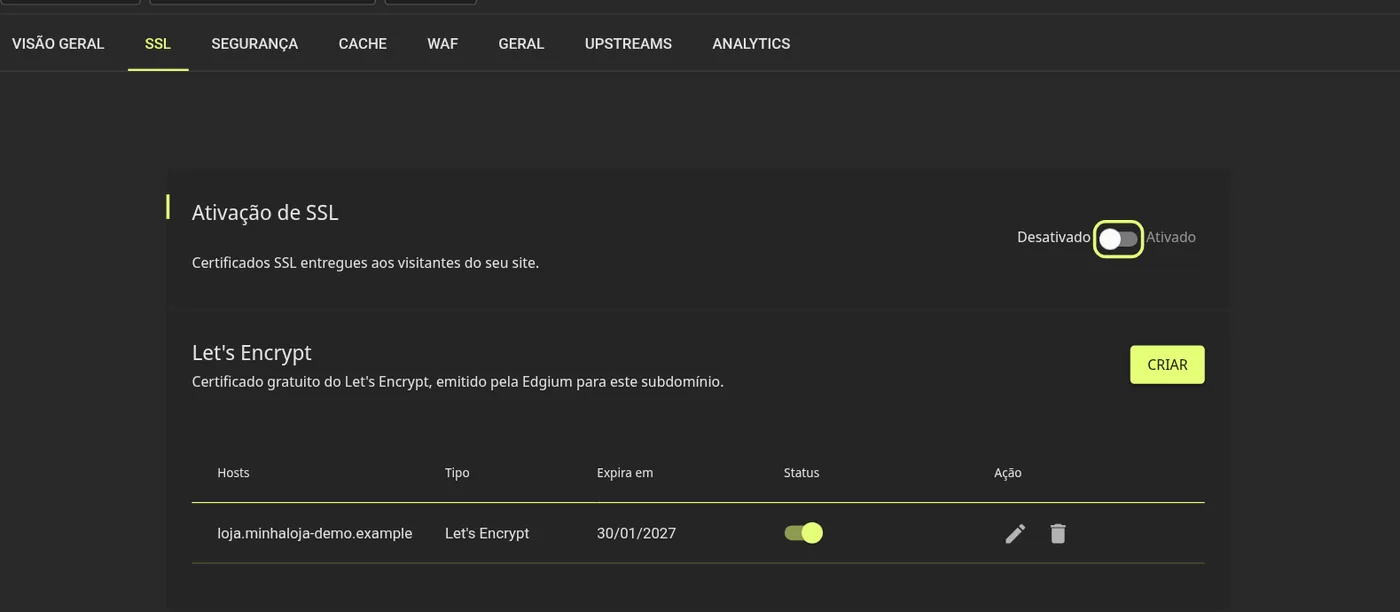
What to expect. The certificate shows as active in the list and Edgium applies the change on the network.
8. Confirm it worked
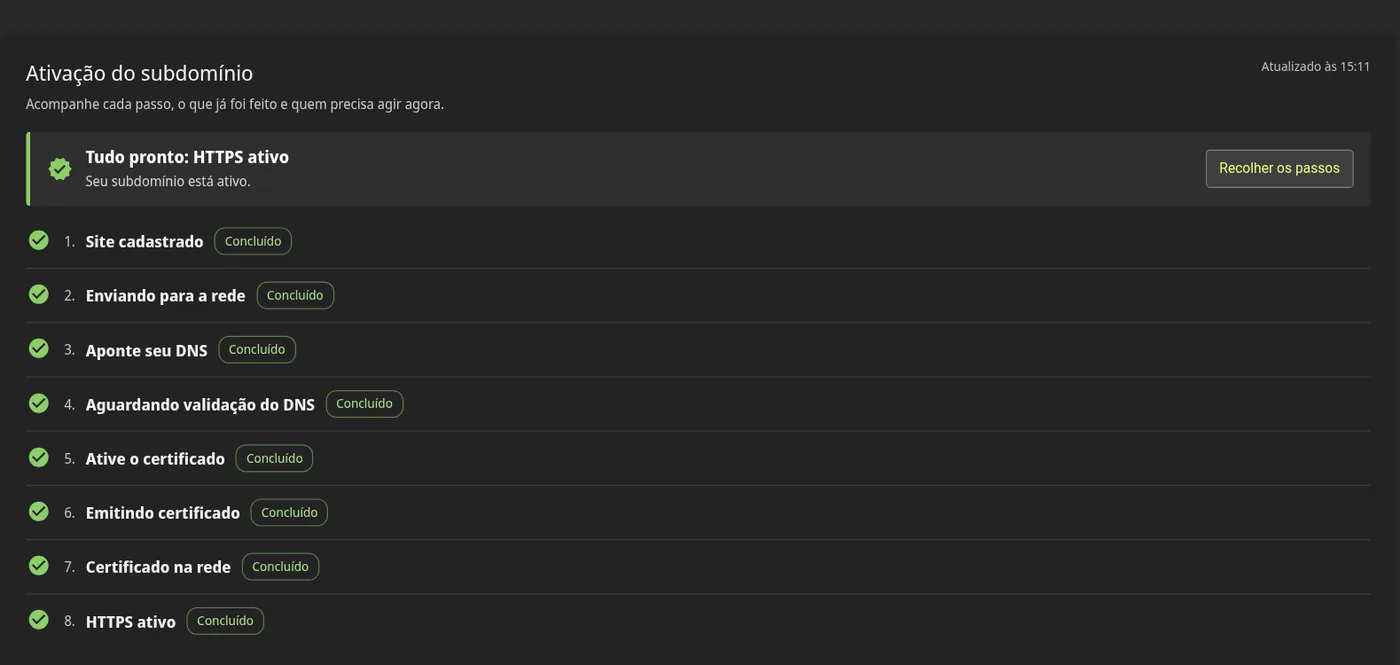
Go back to the Overview tab. When everything is ready, the panel shows All done: HTTPS active and "Your subdomain is active".

Click Show steps to review the whole path, with the 8 steps completed.
To check in the browser as well, open https:// followed by your subdomain address.
Tips
- The screen updates by itself while a step is in progress. You can close the panel and come back later: the current step stays marked.
- In the CDN subdomain list, each subdomain shows a "Step n of 8" indicator, and the filter Show only what needs action lists only the ones waiting for you.
Need help?
If something in your access or your site does not go as expected, gather the information in the guide Problems accessing a site on the CDN: what to collect and send (in Portuguese) and send it to our team at suporte@edgium.net. The full guide, in Markdown, is also in the public Edgium repository (in Portuguese).
Frequently asked questions
How many steps does activating a subdomain have?
8 steps, all tracked in the subdomain Overview tab: site registered, sending to the network, point your DNS, waiting for DNS validation, activate the certificate, issuing certificate, certificate on the network and HTTPS active.
What do I need to do in the DNS?
Create an A record with the subdomain name and the address the panel shows in step 3. The panel displays the exact value and a Copy button. The AAAA record (IPv6) is optional.
Do I need to tell Edgium after pointing the DNS?
No. Edgium checks the record automatically, every 5 minutes, and the panel moves on to step 5 by itself.
Don't have a panel account yet?
Accounts are created by the Edgium team. Tell us your domain and we prepare the access and a test with your site.