
Edgium / DNS manual
DNS manual for Edgium: managed DNS, DNSSEC and best practices
DNS is the service that turns the name of your site, such as example.com, into the address where it lives. If it stops, site, email and systems stop together. This manual explains, without hurry and without loose jargon, how Edgium handles DNS for you: creating the zone, bringing what you already have, turning on DNSSEC and avoiding the most common mistakes.
Want to know all the Edgium DNS options? See the managed DNS and DNS Slave page. The images use demo data (domain example.com and documentation addresses).
Concepts in a few words
You do not need to memorize any of this to use the panel. But with these ideas, the rest of the manual is easy. The examples use the fictional shop example.com.
- Authoritative server
- It is the server that holds the official answer about a domain. When someone asks "what is the address of
www.example.com?", it is the one that really answers. The others only repeat what it said. At Edgium, this role sits on the network anycast servers. - Zone
- It is the domain's "notebook": the list of records (A, MX, TXT and the others) of
example.com. - Primary (master) and secondary (slave)
- The primary is where the zone is edited. The secondary keeps a copy and answers the same. If you edit in the Edgium panel, Edgium is the primary (managed DNS). If you edit on your server and Edgium only keeps the copy, Edgium is the secondary (DNS Slave).
- NOTIFY, AXFR and IXFR
- NOTIFY is the primary's message: "I changed the zone". AXFR copies the whole zone. IXFR copies only what changed. All three only matter when there is a secondary.
- SOA and serial
- The SOA is the zone's control record. The serial number goes up with every change, and that is how a secondary knows it is behind. The habit is to use the date plus two digits, like
2026110601. The SOA also carries refresh (how often the secondary checks), retry (when it tries again after a failure), expire (when the secondary gives up answering if it can no longer reach the primary) and minimum (how long a "does not exist" is kept). - TTL
- It is the time, in seconds, that whoever queries can keep an answer before asking again. A TTL of 300 means 5 minutes. A low TTL changes fast but causes more queries. A high TTL is cheaper but takes longer to take effect. In the panel the TTL goes from 60 to 86400 seconds.
- Delegation, NS and glue
- The delegation is the notice, kept at the domain registration (the registrar), of which servers answer for it. These servers are the NS records. Glue is the IP address of a nameserver whose name sits inside the domain itself, like
ns1.example.com: without it, the internet would have no way to find the nameserver.
Delegation: how the internet finds your DNS
What it is. When you register a domain, the registrar (for example, registro.br for .br domains) keeps its list of nameservers. That list is how the internet finds out who answers for your DNS. Changing DNS provider is, in essence, changing that list.
Example. The shop example.com hired Edgium managed DNS. At the registrar, it replaces the old nameservers with the ones the panel shows. From then on, anyone asking for the shop site is sent to Edgium.
- resolver question
- registry answer (the NS)
- Edgium answer
Scroll the diagram sideways to see it all.
What the animation shows, in order:
- The resolver (the server that serves the visitor) asks the domain registry who answers for
example.com. - The registry returns the NS list: the Edgium nameservers.
- The resolver asks one of them for the site address.
- Edgium answers with authority. If there is a hidden master, it only talks to Edgium and does not appear in the delegation.
Managed DNS: step by step
What it is and who it is for. With managed DNS, your domain zone lives at Edgium and you edit everything in the panel, with review before saving, an Undo button and history. It suits anyone who wants DNS taken care of, without keeping a server of their own, and anyone who wants the anycast network and DNSSEC without building anything.
Example. The shop example.com has DNS today at the same place as its hosting. It wants faster, protected DNS, and wants to put the Edgium CDN in front of the site. It goes with managed DNS.
The steps
- Add the domain. In the panel, add the domain (Domain field, ADD button). Edgium looks for the records that already exist and shows what it found: "Edgium is looking for existing DNS records...".
- Review the records. This is the "Review the DNS records" step. Check that what appeared is right and add what is missing. Nobody can list every name in a DNS, so the search may not find everything: compare with your current zone.
- Change the nameservers at the registrar. This is the "Change the nameservers" step. See the section below. Only after this change does the internet start asking Edgium.
- Wait and check. Edgium checks the delegation by itself. When it is recognized, the domain is marked as delegated to Edgium and you can turn on the CDN on a subdomain.
Bringing the zone you already have (import a file)
If you have the zone file from your current DNS (the BIND format, with extension .zone, .txt, .db or .bind), you do not need to type anything. On the Zone DNS tab, click Import zone file, choose the file or paste the text and click analyze.
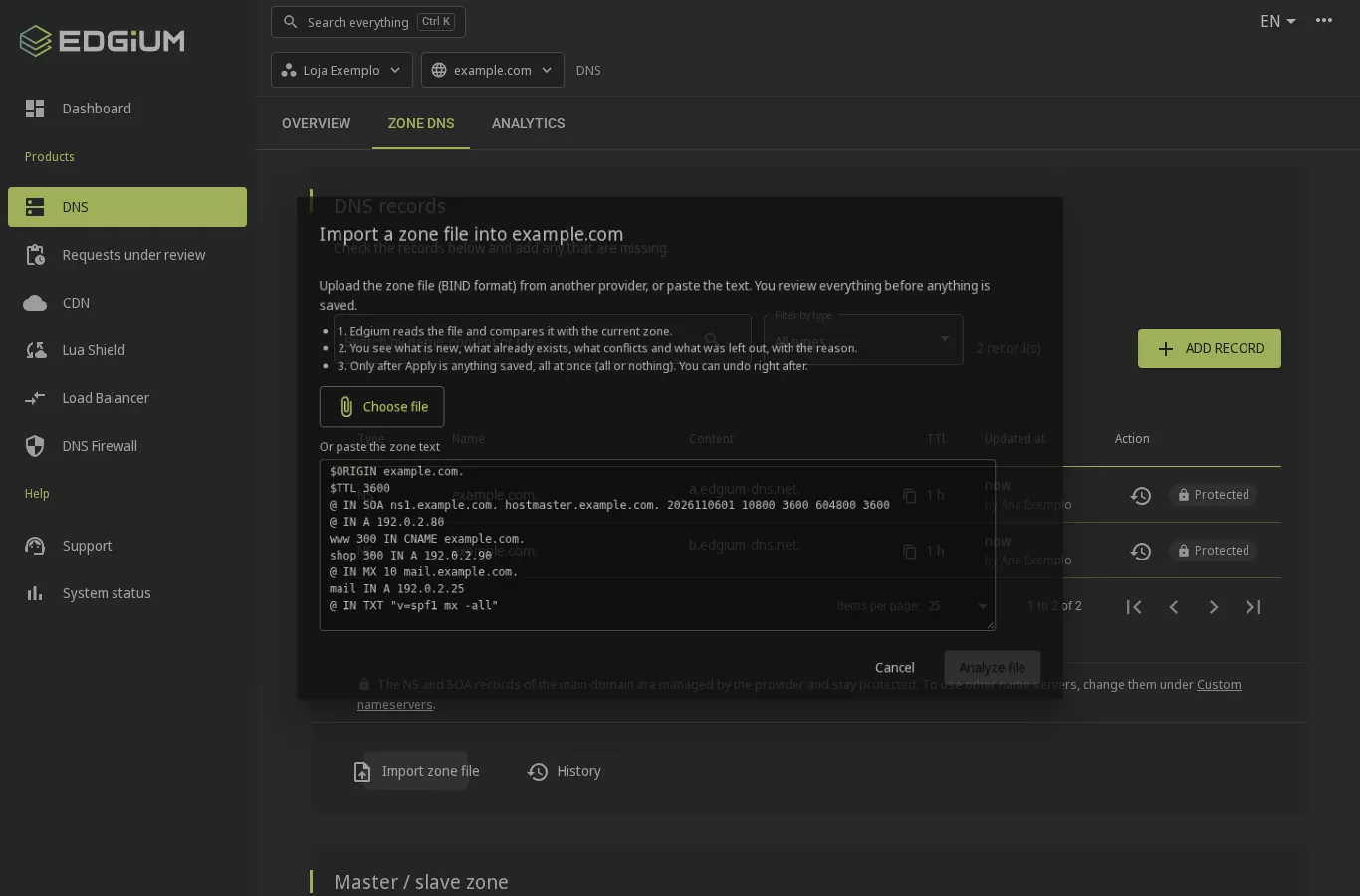
The panel shows a preview and writes nothing yet. It separates what is new, what already exists identical, what conflicts and what was refused. The new ones come checked; you uncheck what you do not want and click Apply changes. Everything is applied at once and can be undone right after.
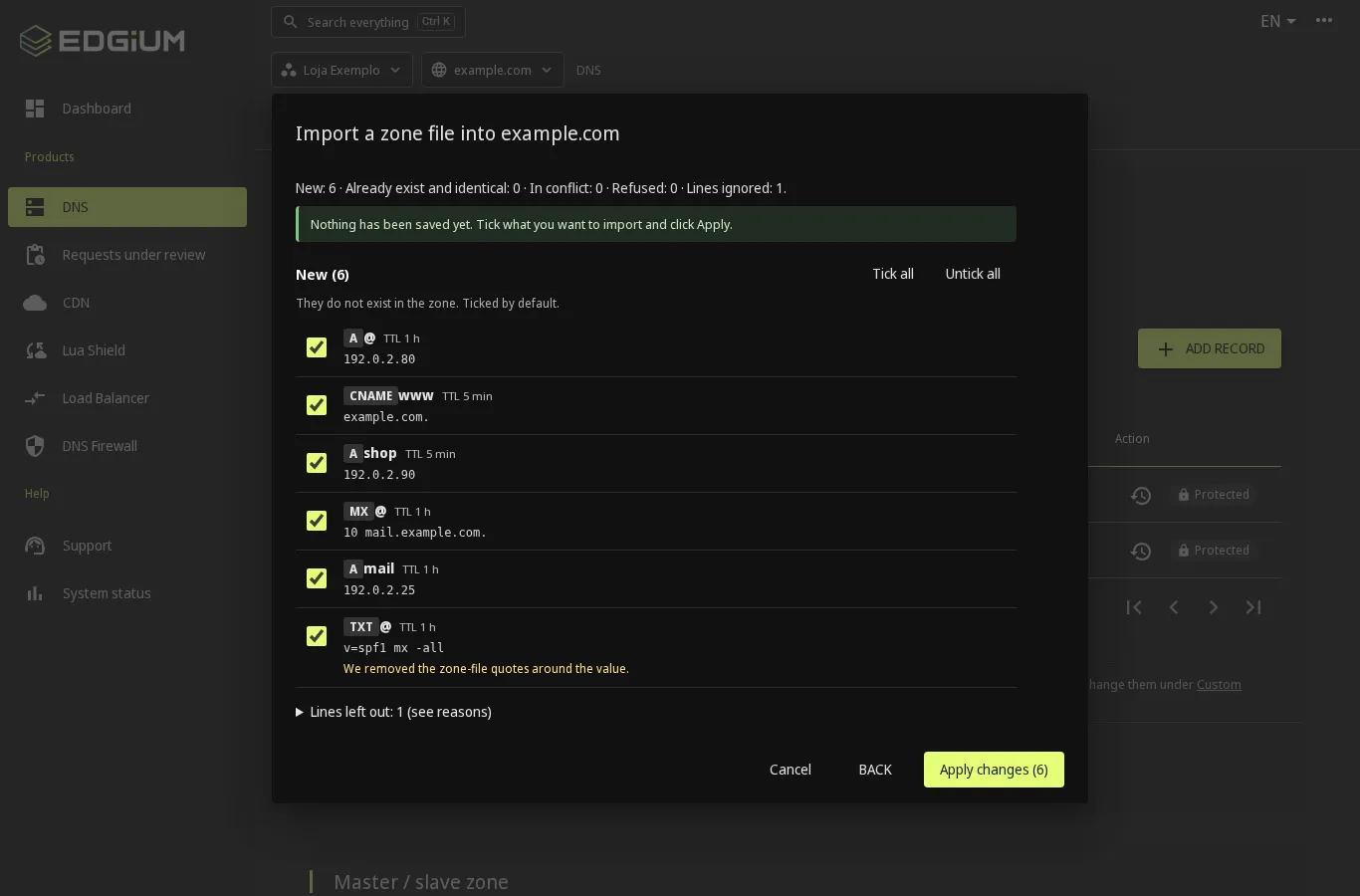
- The SOA record and the apex NS are not imported: Edgium takes care of them.
- DNSSEC records in the file are ignored, because the panel generates the keys.
- The file can have up to 512 KB and 2,000 records. The
$INCLUDEand$GENERATEdirectives are ignored, with a warning. - A TTL outside the 60 to 86400 second range is adjusted and flagged in the preview.
Editing records safely
On the Zone DNS tab you create, edit and delete A, AAAA, CNAME, MX, TXT, SRV and other records, including wildcard (*.example.com). When editing, the panel shows the value before and after and only writes when you confirm. After saving, the Undo button restores the previous value, and History shows who changed what and when. The full guide is in Panel DNS manager.
A few rules the panel enforces for you: a CNAME cannot share a name with other records (so never at the apex, which already has SOA and NS), and the NS and SOA records of the main domain are protected.
Switching the nameservers at the registrar
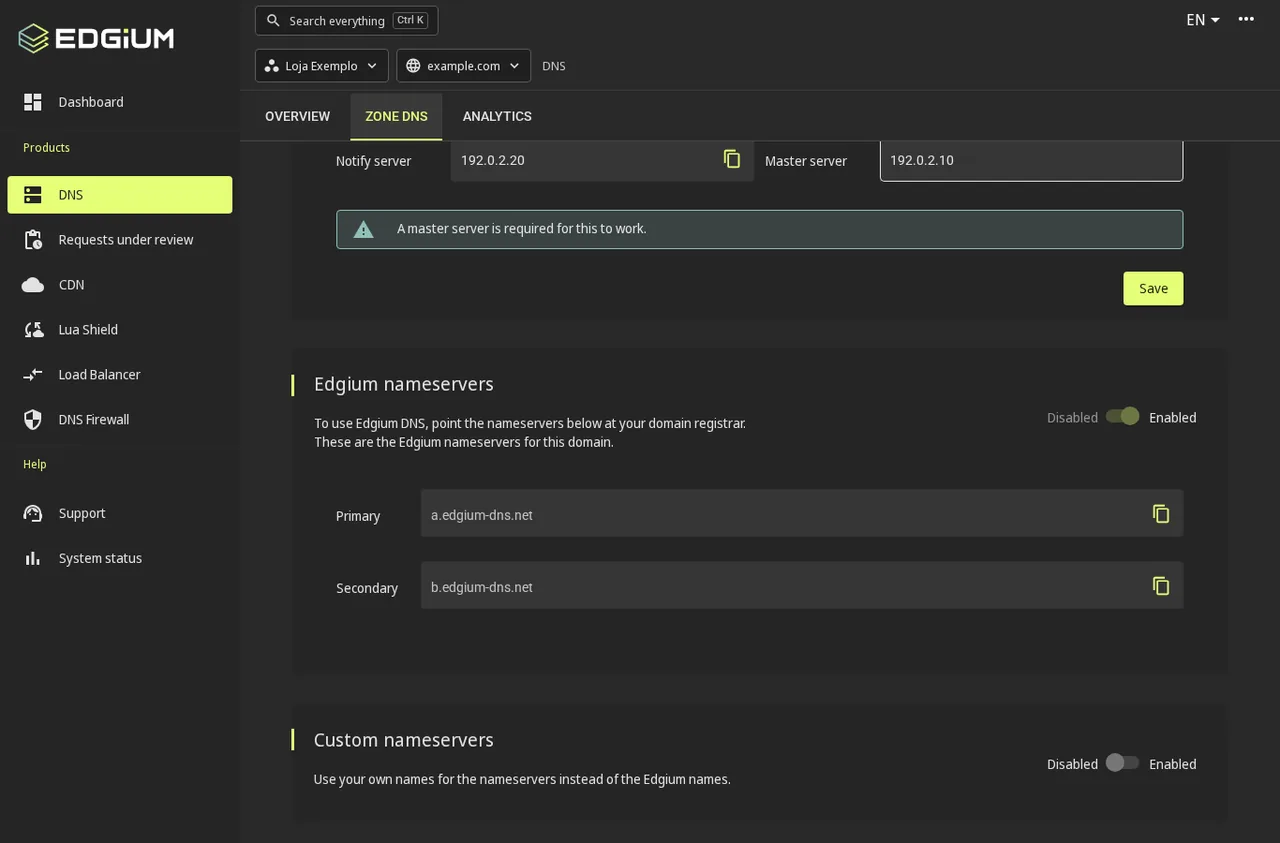
This is the only part you do outside the Edgium panel. The panel shows your domain nameservers in the Edgium nameservers box, with the text "To use Edgium DNS, point the nameservers below at your domain registrar". For example, a.edgium-dns.net and b.edgium-dns.net.
- Sign in to the registrar panel (at registro.br, it is the domain page, under change DNS servers).
- Choose to use other DNS servers and replace the list with the two nameservers from the panel. Leave no old nameserver in the list.
- Save. The change can take from a few minutes to a few hours to reach everyone.
- If the domain has DNSSEC at the old provider, remove the DS first. See the DNSSEC precautions.
Want nameservers with your company name? The panel has the Custom nameservers block, to use ns1.example.com and ns2.example.com instead of the Edgium names. In that case the registrar asks for glue, the IP address of each nameserver, and the panel warns you when it is needed.
DNSSEC: what it is and how to turn it on
What it is, in plain words
DNSSEC is a signature on DNS answers. It proves two things: that the answer came from the zone owner and that nobody changed it on the way. It is like the seal on an envelope: the content is still readable, but you know whether it was opened.
What it protects. Cache poisoning (someone makes a server keep a fake address), traffic diversion (the visitor goes to a server that is not yours) and, as a result, fake sites and email using your name.
What it does not protect. It does not hide or encrypt the query: whoever is on the network still sees the name you asked for. And it does not replace HTTPS, which protects the conversation with the site. The two complete each other.
Example. Without DNSSEC, an attacker can make an internet provider keep a fake address for example.com, and the shop customers land on a copy of the site. With DNSSEC, the validating resolver notices that the signature does not match and refuses the answer.
How it works: the chain of trust
The zone has a key. The server signs the records with it and publishes the signature (RRSIG record) and the public part of the key (DNSKEY record). Whoever checks needs to trust that key, and that is where the DS comes in: a fingerprint of the key, kept at the registrar and signed by .br (or .com, .net...). .br, in turn, has its DS signed by the DNS root, whose key every resolver already knows. It is a chain: root, .br, your domain, the answer.
There are usually two keys: the KSK, which signs the other key, and the ZSK, which signs the records. It is also common to use a single key, the CSK, which does both jobs. The Edgium panel generates the keys for you and shows the key type next to the DS. You do not need to store or rotate keys by hand.
- confirmed link
- validated answer
Scroll the diagram sideways to see it all.
What the animation shows, in order:
- The resolver already trusts the DNS root key.
- The root signs the .br DS, and the resolver comes to trust .br.
- The .br signs the DS of
example.com.br, the record you publish at the registrar. - The zone signs the answer (RRSIG). Because the key matches the DS, the answer is accepted. If any link fails, the resolver refuses.
How to turn on DNSSEC at Edgium
Before you start. DNSSEC applies to a zone managed by Edgium (managed DNS). The domain must have Edgium DNS turned on.
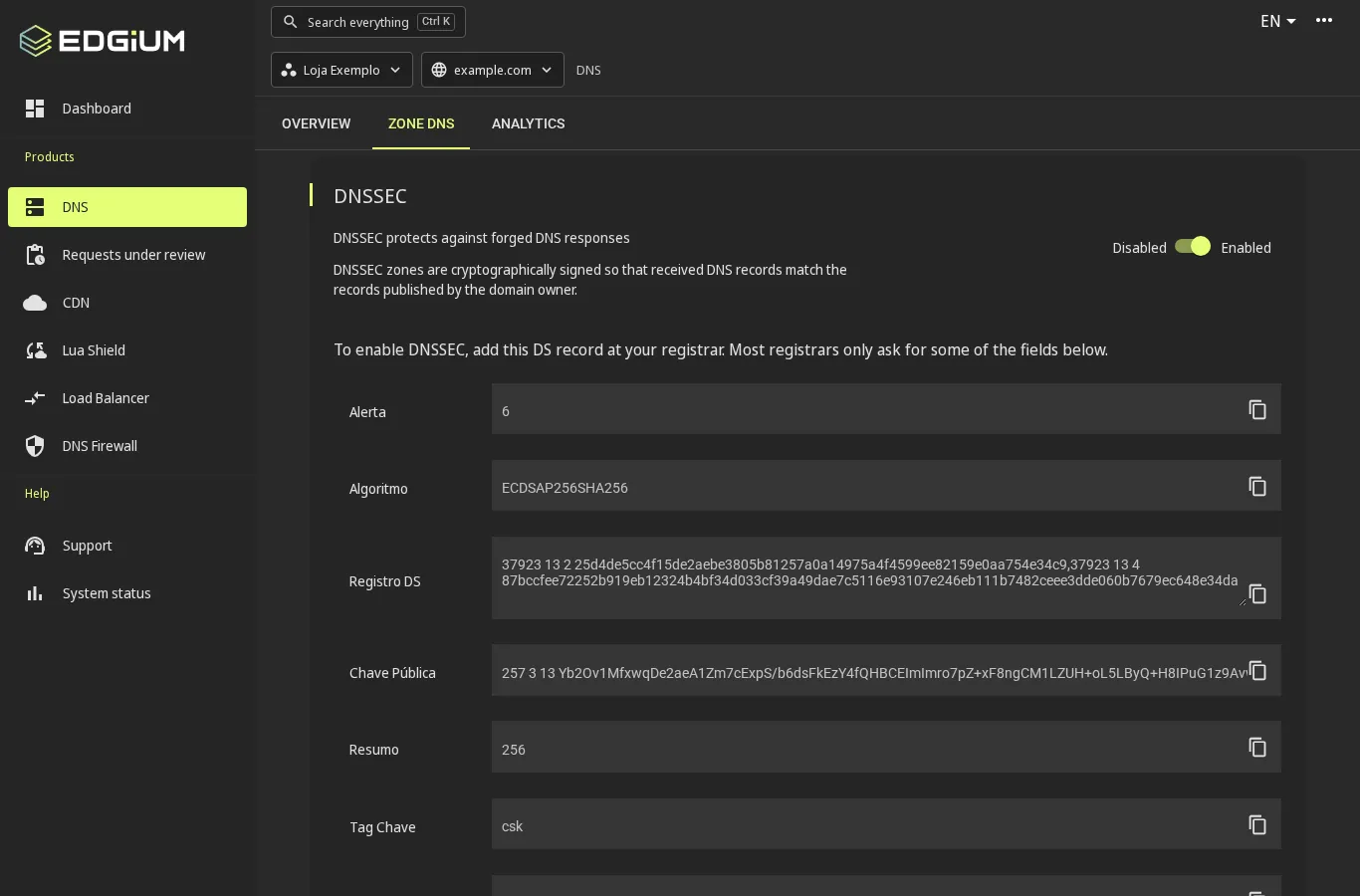
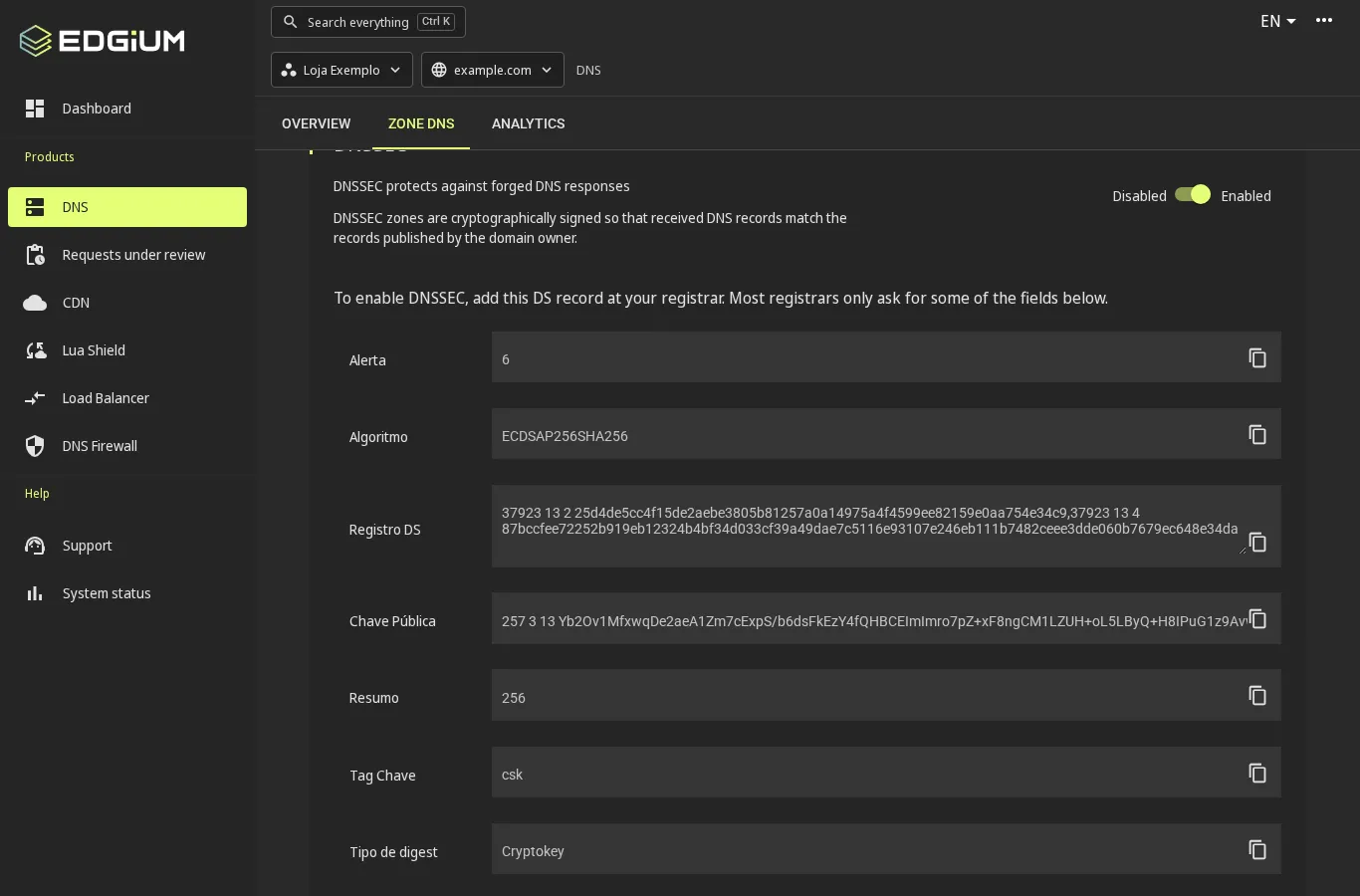
- Turn DNSSEC on. On the Zone DNS tab, in the DNSSEC block, switch from Disabled to Enabled. Edgium creates the keys and signs the zone.
- Copy the DS. The panel shows the DS record, with a copy button. It carries four pieces of data: key tag, algorithm, digest type and the digest in hexadecimal, as in
12345 13 2 49FD46E6C4B4.... The panel may show more than one DS (digest type 2 and type 4): publish type 2 if the registrar accepts only one. - Publish the DS at the registrar. See below the path at registro.br and at a generic registrar.
- Check. After a few minutes, test with
digor an online tool (see How to test).
At registro.br (.br domains)
- Sign in to registro.br and open the domain.
- In the DNS servers area, confirm the nameservers are the Edgium ones.
- Open the DNSSEC section and register the DS: key tag, algorithm (13), digest type (2) and the digest, copied from the Edgium panel.
- Save and wait for publication.
At another registrar
Look for "DNSSEC" or "DS records" in the domain settings. Some registrars ask for the four fields separately, others accept the whole DS line, and others ask for the public key (DNSKEY). The panel shows the DS record and the Public key, so you have both forms. Menu names change from one registrar to another.
DNSSEC and DNS Slave
DNS Slave exists in the panel as a secondary zone: Edgium keeps the copy of a zone you edit on your own server. On that zone, the DNSSEC switch is disabled, because the primary is the one that signs. In practice, DNSSEC is a managed DNS feature, where Edgium is the primary of the zone.
How to test DNSSEC
Use a terminal with dig (or delv, which does the whole validation) and, if you prefer, a checking website.
# 1) Does the zone publish the key?
dig +short DNSKEY example.com @a.edgium-dns.net

# 2) Does the parent (registrar) publish the DS?
dig +short DS example.com

# 3) Does the answer come signed? Look for the RRSIG line
dig +dnssec example.com A @a.edgium-dns.net

# 4) Does a validating resolver accept it? Look for the "ad" flag
dig example.com A @1.1.1.1

# 5) Full validation, step by step
delv example.com A
How to read it. In step 2, a line like 12345 13 2 49FD46E6... is the DS at the parent: if it is empty, the registrar has not published it yet. In step 3, the presence of RRSIG shows the answer is signed. In step 4, the ad flag (authenticated data) in the headers means the resolver validated the chain. In delv, the expected result is fully validated; resolution failed or broken trust chain points to a wrong or missing DS. If the domain went down after turning it on, see Common errors.
Checking websites. DNSViz and the Verisign DNSSEC Debugger draw the chain and point at the link that failed. Type the domain and read the result: green is a complete chain; red shows where it broke.
Who needs DNSSEC
- Banks and payment providers. The domain is the address customers trust. A DNS diversion leads to a fake site with the bank name. That is why DNSSEC is standard in the sector.
- Government, justice and health. Public systems and sensitive data are frequent targets of diversion. DNSSEC protects the path to the service.
- Email with DANE or MTA-STS. DANE publishes the email server key in DNS and only works with DNSSEC. MTA-STS, which enforces encryption on delivery, gets stronger with signed DNS.
- Brand domains. Anyone with a well-known name and many people trusting it gains an extra layer against diversion.
- .br domains with a requirement. According to Registro.br, DNSSEC is mandatory in the categories B.BR, BET.BR, DEF.BR, JUS.BR, LEG.BR, MP.BR and TC.BR, and optional in the others. Check the current rule for your category on the Registro.br categories page.
DNSSEC precautions
1. Never change provider with the old DS in place. If the new nameservers do not have the key behind the DS at the registrar, anyone who validates DNSSEC refuses the answers and the domain looks down. The safe order is: remove the DS, wait for the TTL, switch the NS and only then turn on DNSSEC at the new provider and publish the new DS.
- current step
- what not to do
Scroll the diagram sideways to see it all.
What the animation shows, in order:
- Remove the old provider DS at the registrar.
- Wait for the DS TTL (how long caches keep the information, usually up to 1 day) so it disappears everywhere.
- Switch the nameservers to the new provider, with the zone already ready there.
- Turn on DNSSEC at the new provider and publish the new DS.
The panel protects you from a similar mistake: when you turn DNSSEC off, it asks "Turn off DNSSEC?" and warns "First remove the DS record at the domain registrar. With the DS there and DNSSEC off here, the domain stops resolving."
2. Turning it off safely. Remove the DS at the registrar, wait for the DS TTL to pass and only then turn off DNSSEC on the zone. Never the other way round.
3. Wrong DS. If the registered DS does not match the zone key (mistyped, copied from another zone, key changed), the result is the same: the domain is down for anyone who validates. Always copy the DS from the panel, with the copy button, and check it with dig DS.
4. Key rollover. Keys can be replaced from time to time. Always keep a valid key during the transition and only publish a new DS when the Edgium team tells you to. If you get a rollover notice or need to change the key, talk to suporte@edgium.net first.
5. TTL. A high TTL on the DS and the NS delays any fix. Before big changes, lower the TTL well in advance.
DNS best practices
- TTL by type, and before changes. Records that hardly ever change (MX, SPF TXT, NS) can have a TTL of 1 hour to 1 day. Records you change often (the A of a site being migrated) stay at 5 minutes. Before a planned change, lower the TTL a day earlier, make the change and raise it again afterwards. Example: the shop is about to move the site server; a day before, it sets the A TTL to 300 and, on the day, the switch takes effect in minutes.
- Serial in the YYYYMMDDnn format. If you keep the zone on your own server, use the date plus two digits (
2026110601) and raise the number with every change. A serial that goes backwards makes the secondary ignore the change. With managed DNS, Edgium takes care of the serial. - At least two nameservers, on different networks. With a single nameserver, one failure takes everything down. With two, but on the same network or in the same datacenter, a network failure takes both down. Edgium answers from an anycast network, with the same IP at several points, in Brazil and abroad.
- DNSSEC with care when changing. Turn on DNSSEC on important domains and follow the safe order for changing provider and key, described above.
- CAA: who may issue certificates. The CAA record says which certificate authorities may issue certificates for your domain. If you use the automatic certificate of the Edgium CDN, authorize Let's Encrypt, for example
example.com. CAA 0 issue "letsencrypt.org". If a CAA exists that does not authorize Let's Encrypt, the panel warns you and the certificate is not issued until you fix it. - SPF, DKIM and DMARC for email. SPF (
v=spf1 mx -all) says who may send email for the domain. DKIM signs each message. DMARC says what to do with messages that fail both. Without them, legitimate email lands in spam and your domain is easy to spoof. Start DMARC atp=noneto observe and tighten gradually. - Do not use CNAME at the apex. The main domain (the "apex",
example.comwith nothing before it) already has SOA and NS, and a CNAME cannot share a name with other records. Use A and AAAA records. On the Edgium CDN, the main domain works without CNAME. - Avoid orphan records. A CNAME that still points to a service you canceled can be taken over by someone else (so-called subdomain takeover), who then publishes content in your name. Review the zone from time to time and delete what you do not use. The panel history helps you know what each record is.
- Domain contact and renewal up to date. A perfect DNS is no use if the domain expires. Keep the holder's email updated at the registrar and turn on automatic renewal or a reminder.
- Monitor. Test from time to time (
digon each nameserver), watch the serial on the secondaries and follow usage in the panel Analytics tab.
Common errors and how to fix them
The domain does not resolve after turning on DNSSEC
Almost always the DS at the registrar is wrong or leftover. Check with dig DS example.com and compare with the panel. If you cannot fix it right away, remove the DS at the registrar: the domain comes back when the TTL passes.
The internet still shows the old DNS
The nameserver switch and the TTL take time. Check what the registrar publishes with dig NS example.com and ask Edgium directly with dig example.com @a.edgium-dns.net. If Edgium answers correctly and the rest does not, it is a matter of waiting for the cache.
Lame delegation
It happens when the registrar points to a nameserver that does not have the zone and answers without authority. Check that all the nameservers listed at the registrar are the ones the panel shows and that the zone exists on both.
The panel refused a record
The message appears on the field, saying what to fix. The most common reasons are a CNAME sharing the name with another record, a TTL outside 60 to 86400 and a value with an invalid format.
Certificate does not issue on the CDN
Check whether there is a CAA that does not authorize letsencrypt.org and whether the domain is already delegated to Edgium.
What to send to support. If it does not get fixed, write to suporte@edgium.net with: the domain, what you expected and what happened, the time, and the output of the commands dig NS example.com, dig DS example.com and dig example.com @a.edgium-dns.net.
Need help?
For questions and errors, write to suporte@edgium.net. More guides: managed DNS and DNS Slave, the panel DNS manager and activating a subdomain on the CDN.
Frequently asked questions
What is Edgium managed DNS?
It is the service where your domain zone lives at Edgium and you edit the records in the panel, with review before saving, Undo and history. Answers come from an anycast network, with points in Brazil and abroad.
Can I import the zone I already have?
Yes. On the Zone DNS tab, use Import zone file and paste or upload the file in BIND format. The panel shows a preview, writes nothing until you apply and lets you undo right after.
How do I turn on DNSSEC?
On the Zone DNS tab, in the DNSSEC block, switch to Enabled. Copy the DS record the panel shows and register it at the domain registrar. Then check with dig or on DNSViz.
Does DNSSEC encrypt the DNS query?
No. It signs the answers to prove they came from the zone owner and were not changed, but the query remains visible. It also does not replace HTTPS.
How do I turn off DNSSEC safely?
Remove the DS record at the registrar, wait for the DS TTL to pass and only then turn off DNSSEC on the zone. Turning it off on the zone with the DS still at the registrar takes the domain down.
Can I have DNSSEC on DNS Slave?
Not in the panel: the DNSSEC switch is disabled on a secondary zone. DNSSEC is a managed DNS feature.
How do I avoid taking the domain down when changing DNS provider?
If there is DNSSEC, follow the order: remove the DS, wait for the TTL, switch the nameservers and then turn on DNSSEC at the new provider and publish the new DS.
Want to move your DNS?
Tell us how many zones you have and where they are today. We point the way and follow the switch.